
Zoom Effects Timeline
Table of Contents
- Overview
- The Two Lanes
- Toolbar Controls
- Adding Keyframes
- Zoom Keyframe Properties
- Position Keyframe Properties
- Deleting a Keyframe
Overview
The Zoom Effects tab in the timeline lets you animate zoom and focus changes across your video. It works like a keyframe editor — you place keyframes at specific points in time, and the video smoothly interpolates between them.
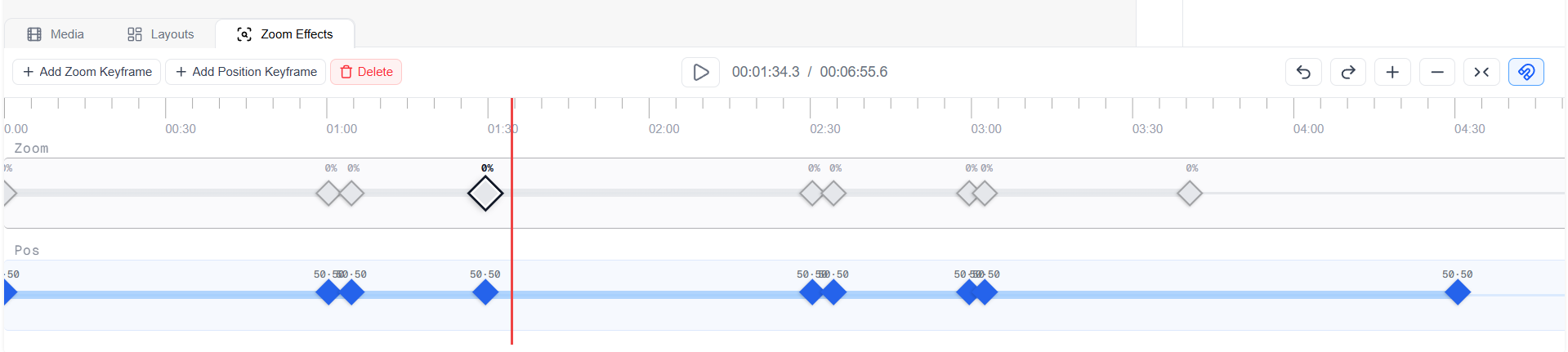
Zoom Effects Timeline in the Screen Script Editor
The Two Lanes
The Zoom Effects timeline has two independent keyframe lanes:
| Lane | What it controls |
|---|---|
| Zoom | How much the video is zoomed in at a given point. Keyframes appear as grey diamonds. |
| Pos | Where the camera is focused — the X and Y coordinates of the focal point. Keyframes appear as blue diamonds. |
The two lanes work together. At any point in time, the video uses the current zoom level from the Zoom lane and the current focus position from the Pos lane. You can place keyframes on either lane independently.
Toolbar Controls
| Control | Requires Selection | Description |
|---|---|---|
| + Add Zoom Keyframe | No | Adds a zoom keyframe at the current playhead position |
| + Add Position Keyframe | No | Adds a position keyframe at the current playhead position |
| Delete | Yes — a keyframe must be selected | Removes the selected keyframe |
Delete only appears in the toolbar when a keyframe is selected.
Adding Keyframes
- Move the playhead to the point in the timeline where you want the zoom or position to change.
- Click + Add Zoom Keyframe or + Add Position Keyframe.
- A new keyframe is placed at the playhead position on the corresponding lane.
- Click the keyframe to select it and adjust its properties in the sidebar.
Repeat this at different points in the timeline to create a sequence of changes. The video will animate smoothly between keyframes according to the easing setting on each one.
Zoom Keyframe Properties
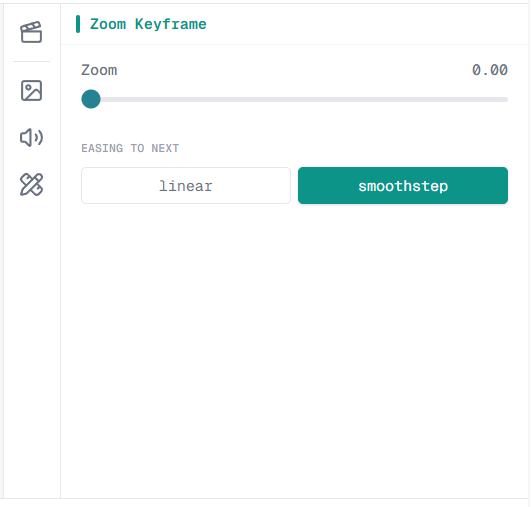
Zoom Keyframe properties panel in the Screen Script Editor
Clicking a zoom keyframe opens the Zoom Keyframe panel in the sidebar with two controls:
Zoom A slider that sets the zoom level at this keyframe. Drag the slider right to zoom in further, or left to reduce zoom.
Easing to Next Controls how the video transitions from this keyframe to the next zoom keyframe:
| Option | Behaviour |
|---|---|
| Linear | The zoom changes at a constant speed between keyframes |
| Smoothstep | The zoom eases in and out — it starts slow, accelerates through the middle, and slows again at the end |
Position Keyframe Properties
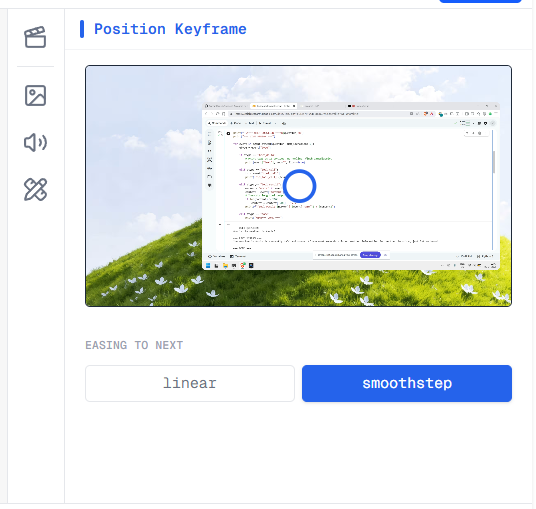
Position Keyframe properties panel in the Screen Script Editor
Clicking a position keyframe opens the Position Keyframe panel in the sidebar.
Position A live preview of your video is shown. A circular pointer indicates the current focal point. Drag the pointer anywhere on the preview to set where the video focuses at this keyframe.
The position is defined as X and Y coordinates, each ranging from 0 to 100:
| Axis | 0 | 100 |
|---|---|---|
| X | Left edge of the frame | Right edge of the frame |
| Y | Top edge of the frame | Bottom edge of the frame |
Easing to Next Controls how the focus position moves between this keyframe and the next:
| Option | Behaviour |
|---|---|
| Linear | The focus point moves at a constant speed |
| Smoothstep | The movement eases in and out for a more natural camera feel |
Deleting a Keyframe
- Click on a keyframe in either lane to select it.
- Click Delete in the toolbar.
The keyframe is removed and the video will interpolate directly between the surrounding keyframes.