
Project Settings
Table of Contents
Overview
Project Settings is the first panel in the Properties Panel, identified by the clapperboard icon at the top of the icon strip on the left. These are project-wide settings that affect the entire video.
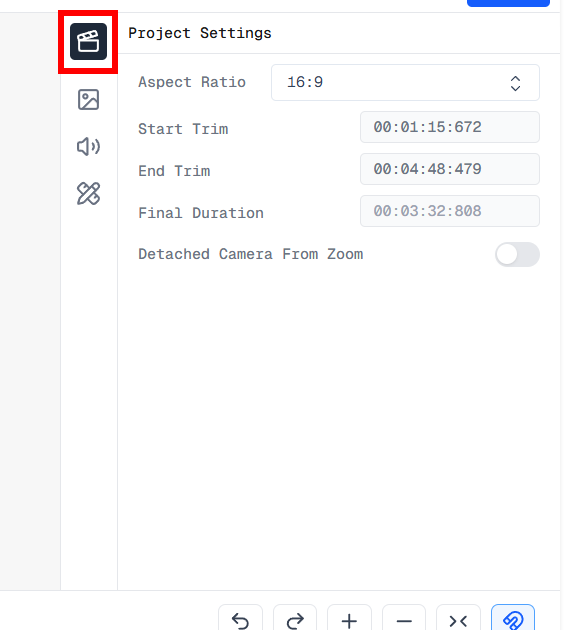
Project Settings panel in the Screen Script Editor
Aspect Ratio
The Aspect Ratio dropdown lets you choose the output dimensions of your video. Screen Script currently supports:
| Ratio | Common use |
|---|---|
| 16:9 | Standard widescreen — YouTube, presentations |
| 4:3 | Classic screen format |
| 1:1 | Square — Instagram feed |
| 9:16 | Vertical — Reels, Shorts, TikTok |
Two important things to know:
- This is the only place to change aspect ratio. You cannot change it from the Export tab — it must be set here in Project Settings.
- Changing aspect ratio resets all your layouts. Layouts are tightly tied to the aspect ratio, so switching ratios will remove your existing layout segments. Set your aspect ratio first before configuring layouts.
Trims
Trims are the fastest way to cut the beginning or end of your recording without manually dragging clips in the timeline. You simply specify when the video should start and when it should end — only that portion will be rendered in the final export.
Start Trim
Start Trim sets the point in the original recording where your final video will begin.
For example, if you set Start Trim to 00:00:02:000, the first 2 seconds of the recording are skipped. The exported video starts at the 2-second frame of the original footage.
End Trim
End Trim sets the point in the original recording where your final video will end.
Unlike Start Trim, this is an absolute timestamp — you specify exactly when to stop, not how much to cut. This makes it easier to use: you can watch the video, find the moment you want to end on, and enter that timestamp directly without needing to calculate anything.
For example, if you set End Trim to 00:03:00:000, the exported video ends at the 3-minute mark, even if there is more footage recorded after that.
Final Duration
Final Duration is a read-only field. It shows the total length of your video after both Start Trim and End Trim are applied. You cannot edit this value directly — it updates automatically as you adjust the trim values.
You can also set Start Trim and End Trim quickly using the Media Timeline. See the Timeline section for details.
Detach Camera From Zoom
Detach Camera From Zoom is a toggle switch.
When enabled, the webcam overlay moves independently of zoom effects. The camera feed stays fixed in its position on screen while zoom effects are applied only to the screen layer behind it.
This is most useful when you want your camera to remain in the same corner throughout the entire video, regardless of where the screen zooms in.
When disabled (default), the camera overlay follows the zoom — it scales and repositions along with the rest of the frame when a zoom effect is active.