
Recorder
Table of Contents
Introduction
The Recorder page is where you choose which components you want to record and start your recording. Screen Script currently supports four recording sources:
- Screen — capture a tab, window, or full screen (with optional system audio)
- Webcam — record your camera feed
- Microphone — capture voice narration
- Android — stream your phone screen over Wi-Fi (beta)
Each source has its own detailed guide. This page covers the general flow, permissions, and common questions.
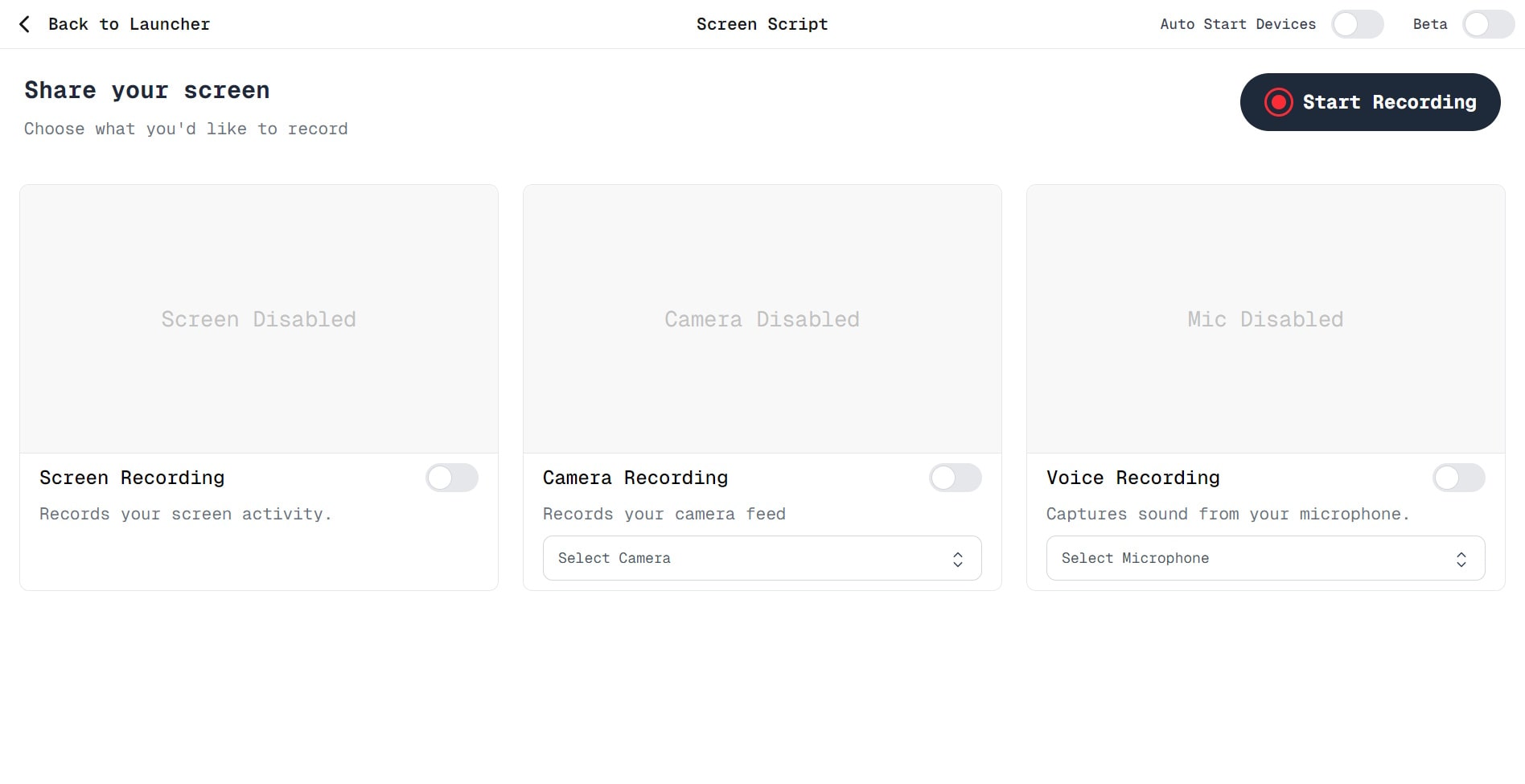
A sample image of Screen Script Recorder
General Flow
- Enable a source using the toggle switch next to it.
- When you turn it on for the first time, a permission dialog will appear.
- After you allow the permission, you will see a preview of that source (screen, webcam feed, microphone input levels, or Android stream).
- Enable as many sources as you need.
- Once ready, click the Record button.
- During recording, previews will be hidden to improve performance.
- When you are done, click Stop Recording. Your content is saved and the Editor opens automatically.
Permissions
Webcam and Microphone
- When enabling these, your browser will ask for permission.
- You can choose:
- Allow once — you will be asked again next time.
- Always allow — Screen Script will not ask again.
- For detailed steps and troubleshooting, see the Webcam or Microphone guides.
Screen Recording
- Screen sharing permissions must be granted every time — this is a browser security requirement.
- You will need to select:
- Which tab, window, or full screen to capture.
- Whether to include system audio.
- See the Screen Recorder guide for details on capture modes and troubleshooting.
Android Recording (Beta)
- Android recording requires installing a separate companion app that streams your device screen over Wi-Fi.
- See the Android Recorder guide for full setup instructions.
Auto Start Devices
If you regularly use the same sources, enable Auto Start Device (toggle in the top-right of the Recorder page). This automatically turns on the camera and microphone whenever you visit the Recorder, so you can skip the manual toggles and start recording faster.
FAQs
1. Why can't I see my webcam or microphone preview?
You may have blocked permissions earlier. Open your browser's site settings and allow camera/microphone access for Screen Script. See the Webcam or Microphone guides for step-by-step instructions.
2. Why do I have to select my screen every time?
Browsers do not allow permanent permission for screen recording. You must choose the screen or window manually each session.
3. Why is the preview hidden when I start recording?
Preview is disabled automatically during recording to reduce CPU usage and make your recording smoother.
4. My Android device is not showing up. What should I do?
Ensure the companion Android app is installed, running, and connected to the same Wi-Fi network. See the Android Recorder guide for setup steps.
5. Why is screen audio not recorded?
Not all browsers or devices support system audio capture. Make sure you selected audio when choosing the screen source. See the Screen Recorder guide for supported platforms and troubleshooting.
6. Can I record multiple sources at once?
Yes. You can combine screen + webcam + microphone, or any supported combination.
7. What happens if I deny permissions?
The source will stay disabled. You must manually re-enable it and allow permissions before recording.
Component Guides
For detailed documentation on each recording source:
Screen Recorder
Capture tabs, windows, or full screen with optional system audio.
Webcam Recorder
Record your camera feed, switch devices, and manage permissions.
Microphone Recorder
Capture voice narration, choose input devices, and troubleshoot audio.
Android Recorder
Stream your Android screen over Wi-Fi using MJPEG (beta).