
Android Recorder Component
Status: Beta Feature — may contain issues or change in future updates.
Table of Contents
- Introduction
- What This Component Does
- Steps to Record Your Android Screen
- Things to Keep in Mind
- Additional Notes
- FAQs
Introduction
The Android Recorder component in Screen Script allows you to record your Android device’s screen wirelessly over Wi-Fi and add it directly to your project.
This is ideal for creating product demos, tutorials, walkthroughs, and app previews using your actual device.
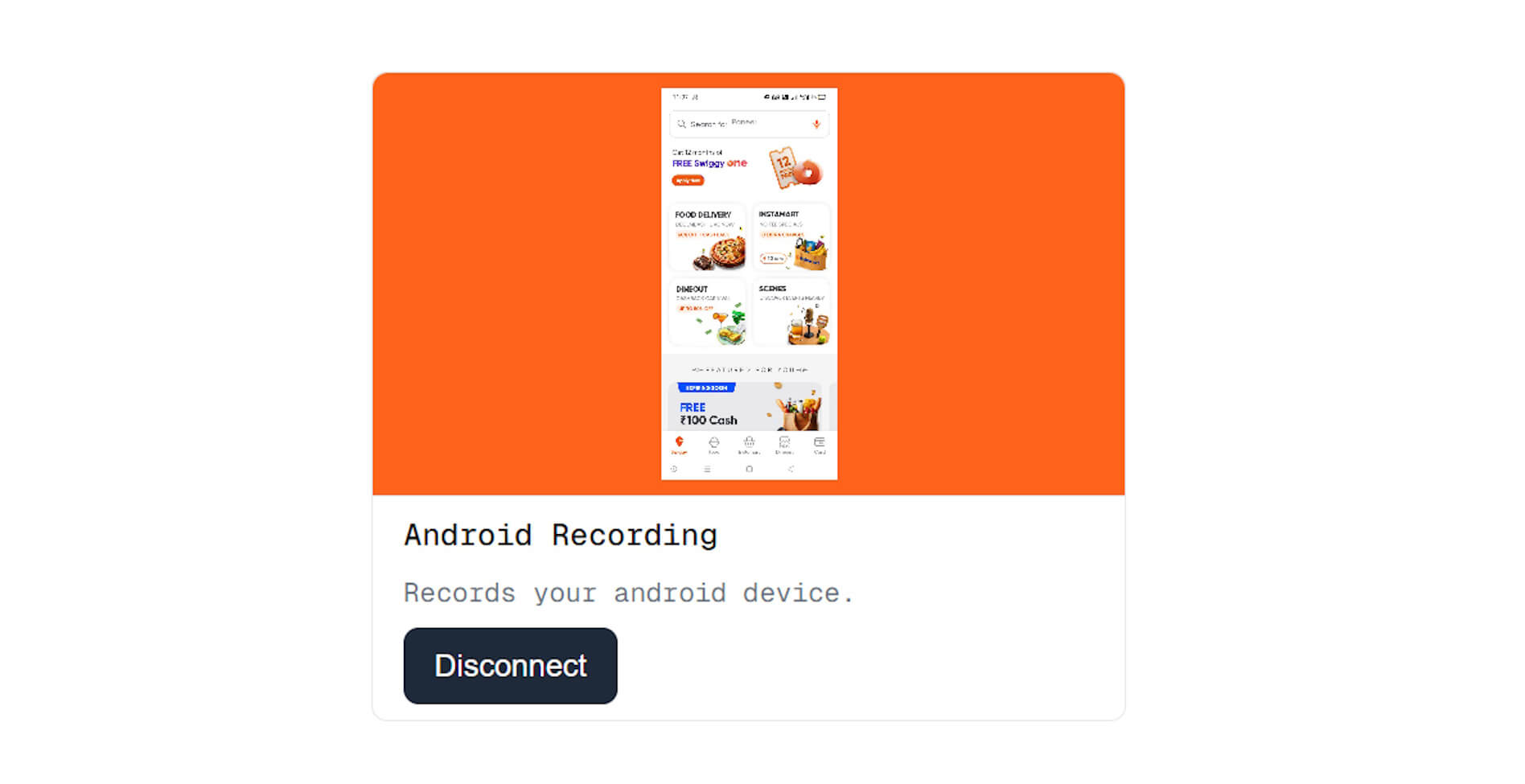
A sample image of android Recorder Component
What This Component Does
Screen Script cannot directly capture an Android device's screen over Wi-Fi, so this component works by connecting to an MJPEG stream broadcast from your Android device.
To enable this, you must install a third-party screen streaming app such as ScreenStream (open source), which outputs the screen as an MJPEG stream.
Steps to Record Your Android Screen
1. Install a Screen Streaming App
Install any screen-streaming app that supports MJPEG.
We recommend ScreenStream, available from:
- Play Store: https://play.google.com/store/apps/details?id=info.dvkr.screenstream
- F-Droid: https://f-droid.org/packages/info.dvkr.screenstream/
- GitHub: https://github.com/dkrivoruchko/ScreenStream
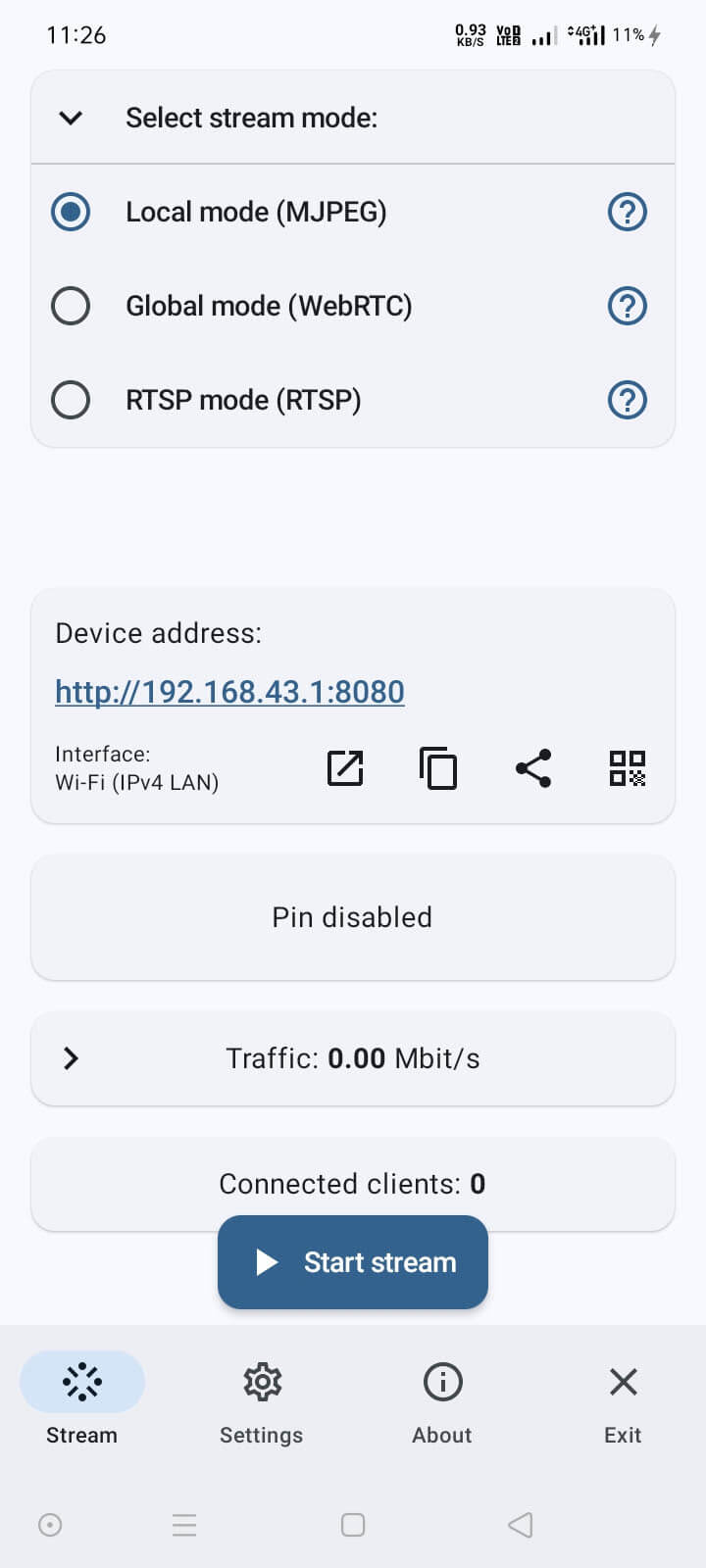
A sample image of Screen Stream app
2. Configure Video Quality
Open the app and adjust these settings:
- Go to Resize Image
- Select Exact resolution
- Set the value to match your device's screen resolution
If your Wi-Fi speed is low (local network), consider choosing a lower resolution.
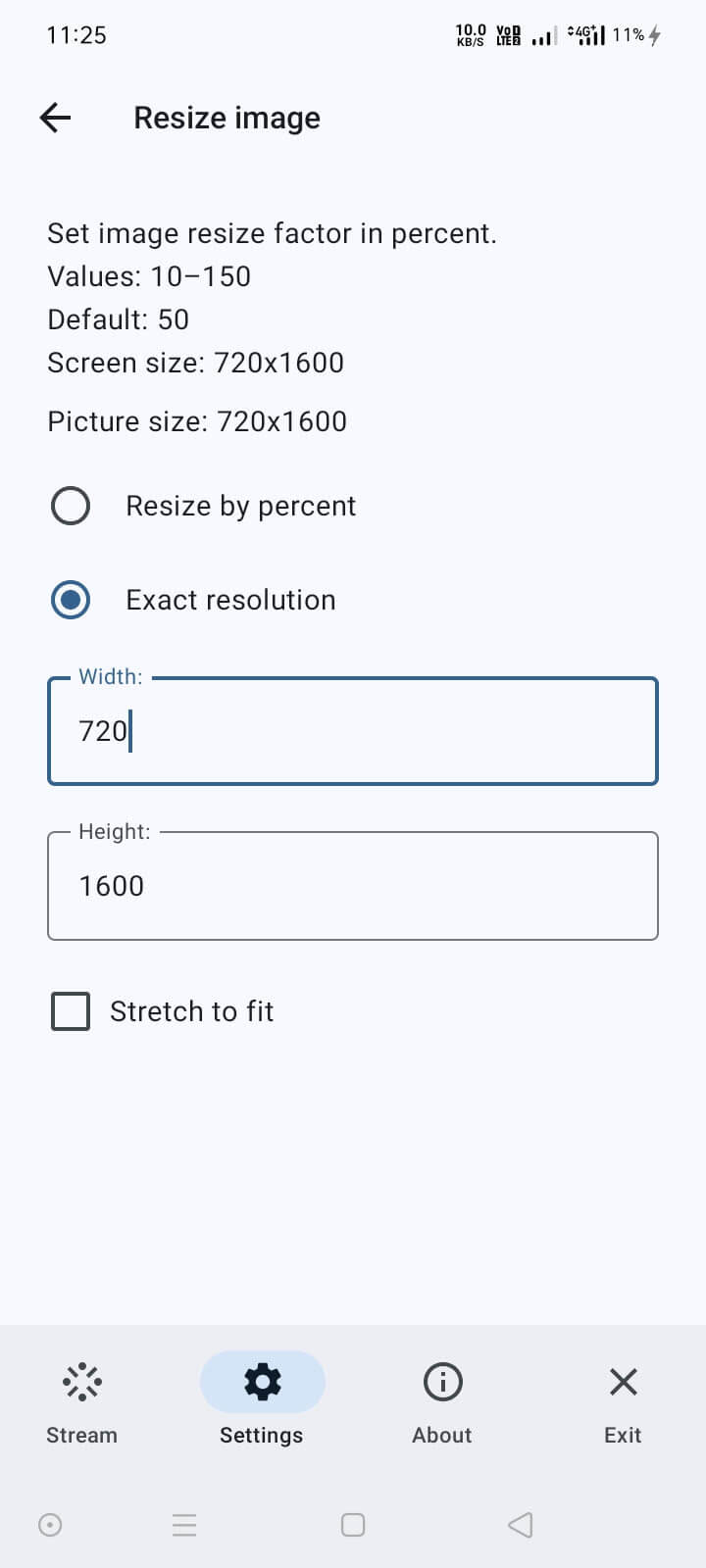
A sample image of Screen Stream App Settings
3. Connect Both Devices to the Same Wi-Fi
Your Android device and your computer running Screen Script must be on the same Wi-Fi network.
4. Start the MJPEG Stream
Inside the streaming app:
- Select Local Mode (MJPEG)
- Tap Start Stream
- Grant permission when prompted (
Start now)
You will see a device address such as:
http://192.168.43.1:8080
5. Build the MJPEG Stream URL
Screen Script needs the full MJPEG stream URL.
For ScreenStream, append this path:
/stream.mjpeg?clientId=<RANDOM_STRING>
Example
Base address from the app:
http://192.168.43.1:8080
Add the MJPEG endpoint:
http://192.168.43.1:8080/stream.mjpeg?clientId=
Add a random string:
http://192.168.43.1:8080/stream.mjpeg?clientId=jBFt2fPzY43QR4bM
This full URL is what you will paste into Screen Script.
6. Connect Android Recorder in Screen Script
- Go to https://screenscript.app/launcher
- Create or open a project
- In the Recorder page, enable Beta Mode (toggle in top-right)
- The Android Recorder component will appear
- Paste the MJPEG stream URL into the input field
- Click Connect
If the connection succeeds, you will see a live preview of your Android screen.
7. Start Recording
Enable any additional components you need (webcam, microphone, etc.) and click Record.
When finished:
- Stop the recording inside Screen Script
- Stop streaming on the Android device by tapping Stop Stream
Things to Keep in Mind
- Android recording is in beta and may contain bugs or change in future updates.
- Both devices must be on the same Wi-Fi network.
- MJPEG streaming does not capture audio, so Android device audio cannot be recorded.
- Slow or congested Wi-Fi networks may cause lag or dropped frames.
Additional Notes
- Although designed as an Android Recorder, this component can capture any valid MJPEG stream URL.
This means you can use it to record:- External cameras that output MJPEG
- IoT devices with MJPEG feeds
- Local or remote MJPEG streams
- Browser-based MJPEG renderers
As long as Screen Script can access the MJPEG URL, it can record the stream.
FAQs
1. Why do I need a separate Android app to stream the screen?
Android does not allow screen capture over Wi-Fi directly for security reasons.
Using a third-party app like ScreenStream enables your device to broadcast an MJPEG stream that Screen Script can read.
2. Does Screen Script support capturing audio from the Android device?
No.
The Android Recorder currently uses MJPEG, which supports only video frames—not audio.
You may record narration using your computer’s microphone instead.
3. Do both devices need to be on the same Wi-Fi network?
Yes.
Your Android device and your computer must be connected to the same local network to ensure that the MJPEG stream is reachable.
4. My stream is lagging or freezing. What should I do?
Lag usually happens due to low Wi-Fi bandwidth or network congestion. Try:
- Reducing stream resolution in the ScreenStream app
- Moving closer to the Wi-Fi router
- Using a less-crowded Wi-Fi channel
- Avoiding heavy network activity during recording
5. Can I use this feature without ScreenStream?
Yes.
Screen Script supports any valid MJPEG stream URL.
You can use other apps, external IP cameras, IoT devices, or custom MJPEG feeds, as long as they output an accessible MJPEG stream.
6. My MJPEG URL doesn’t connect. What could be wrong?
Common causes include:
- Incorrect or incomplete MJPEG URL
- Device not connected to the same network
- Firewall or router blocking local connections
- The streaming app not currently running
- Port changed or unavailable
Double-check the URL format, especially the /stream.mjpeg?clientId= part in ScreenStream.
7. The preview shows, but the recording is blank. Why?
This may occur if the MJPEG stream momentarily disconnects or drops too many frames.
Try lowering the streaming resolution or improving network stability.
8. Is it safe to stream my screen over Wi-Fi?
Yes, as long as you:
- Use a trusted Wi-Fi network
- Keep the streaming app running only when needed
- Do not share the stream URL publicly
Most streaming apps allow restricting connections to local devices only.
9. Can I use mobile hotspot instead of Wi-Fi?
Yes.
As long as both devices are on the same network, a hotspot will work.
However, performance may vary depending on your phone’s hotspot quality.
10. Will this feature improve in future updates?
Yes.
Android Recorder is in beta, and future updates may include:
- Smoother playback
- Better connection handling
- Support for additional streaming formats
- Potential audio support (depending on Android limitations)