
Launcher
Table of Contents
- Introduction
- Accessing the Launcher
- Understanding the Launcher UI
- Creating a New Project
- Deleting a Project
- Important Storage Warning
- FAQs
Introduction
The Launcher is where you manage all your video projects.
Here you can create new projects, view existing ones, record or edit videos, and delete projects you no longer need.
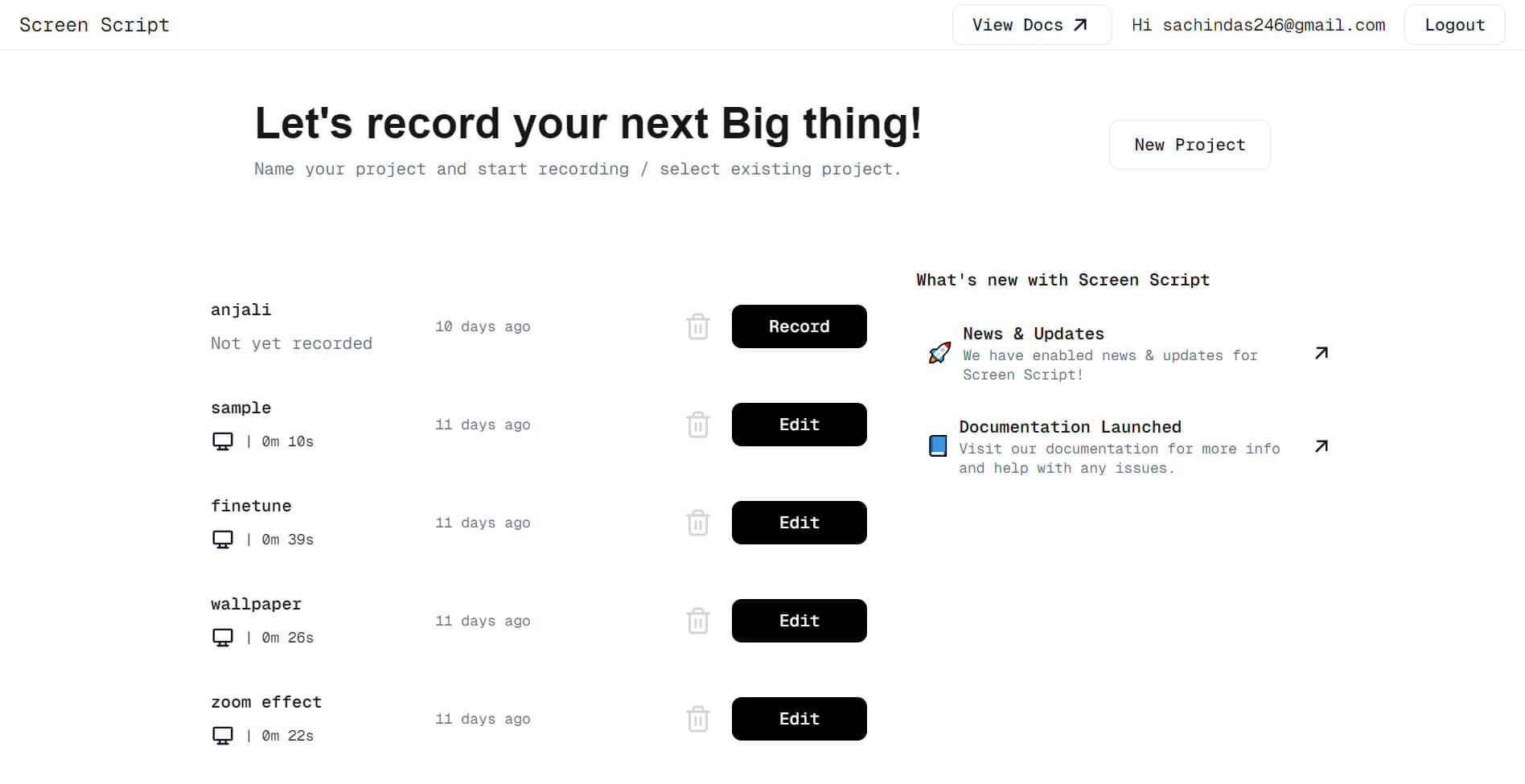
A sample image of Screen Script Launcher
Accessing the Launcher
You can open the launcher in two ways:
-
Option A: Direct Link
Go to: https://screenscript.app/launcher -
Option B: From the Homepage
Click “Record your first video” on the home page to open the launcher.You must be signed in to Screen Script to access the Launcher. Signing up is free.
Understanding the Launcher UI
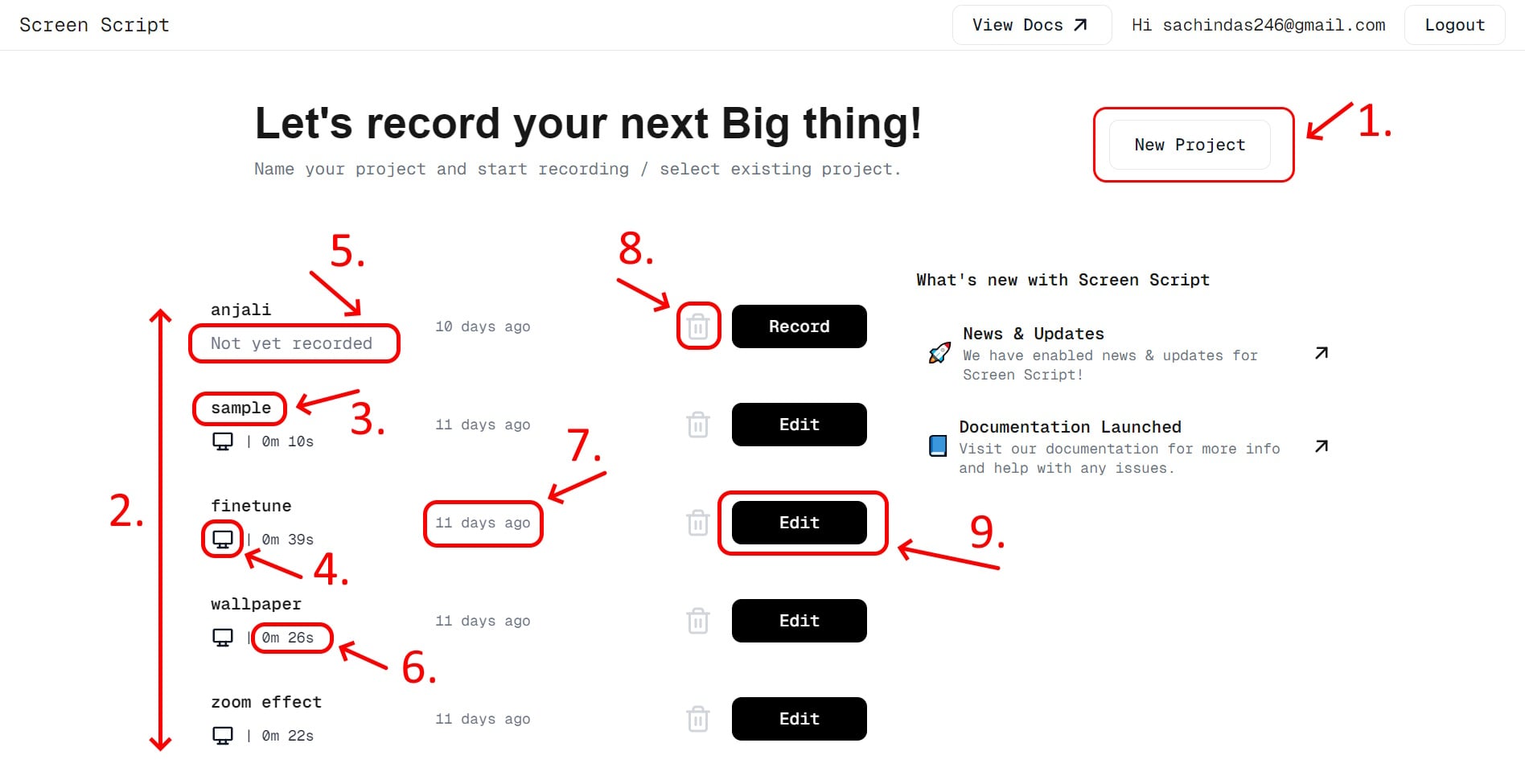
Use the image to understand launcher ui better
-
New Project Button (1):
Use this button on the top right to create new projects. -
Projects List (2):
Projects in the launcher are displayed from newest to oldest, based on the last updated time.Each project card shows the following details:
-
Project Name (3):
Displayed at the top-left of the card. -
Recorded Components (4):
Shown under the project name. Icons represent the components recorded in that project:-
Screen recording
-
Webcam recording
-
Microphone Recording
-
Phone Recording
-
If the project was not recorded, you will see: “Not yet recorded” (5).
-
-
Clip Duration (6):
Shown to the left of the component icons, e.g.,0m 26s. -
Last Updated (7):
Displayed in the middle of the project card. -
Delete Button (8):
The trash can icon deletes the project permanently. -
Action Button (9):
Shown at the far right, it opens your project based on the project state- Record → if the project has no recordings
- Edit → if the project already has recorded content
-
Creating a New Project
-
Click ”New Project” at the top-right of the launcher.
-
A dialog will appear asking for a project name.
-
Enter a name and click ”Create” or press Enter.
-
Your new project will appear in the list.
Free users can create up to 8 projects. To make room, delete projects you no longer need, or upgrade to Premium for unlimited projects.
Deleting a Project
To delete a project:
- Click the trash can icon next to the project.
- The project will be removed permanently.
Important: Deleted projects cannot be recovered.
Important Storage Warning
Screen Script stores all your project data locally in your browser.
This means:
- Your browser may delete the data automatically.
- Clearing your cache or site data will remove your projects.
- Switching browsers or devices will not bring your projects with you.
- Storage limits vary by browser.
Do NOT treat Screen Script as a permanent storage solution.
Backup Tool
The simplest way to back up your data is to export your browser's IndexedDB using a browser extension. On Chrome or Edge, we recommend IDBPorter:
https://chromewebstore.google.com/detail/idbport/kmpakemocjdhfcpfggpodkjhmjibhhhm
For other browsers, search for an IndexedDB export extension in your browser's extension store.
Best Practices
- If you are working with something important, keeping a backup of your indexedDB may come in handy.
- Delete old or unused projects to free storage.
- Be extra careful on Safari and Firefox, as they have much lower storage limits.
- Avoid clearing browser storage unless you intend to delete your projects.
FAQs
1. What is the Screen Script Launcher?
The launcher is your project management dashboard. It shows all your projects and lets you create, record, edit, or delete them.
2. Why does a project say “Not yet recorded”?
You created a project but haven’t started recording anything in it yet.
Click Record to begin.
3. What do the icons under each project mean?
They show which components you recorded — see the Recorded Components section above for the full icon reference.
4. Why are my projects sorted in this order?
Projects are sorted newest first, based on when they were last updated.
5. What does the “Edit” button do?
It opens your recorded project in the editor, where you can trim and apply other effects before finalizing your video.
6. Why do I see “Record” instead of “Edit”?
The project has no recordings yet.
Click Record to begin capturing your screen, audio, or webcam.
7. What happens when I delete a project?
The project is permanently removed from your browser storage.
There is no way to recover it.
8. Why did my project disappear?
Screen Script uses browser storage, so your data may disappear if:
- You cleared browser data
- You used private/incognito mode
- Your browser auto-cleaned storage
- You reached storage limits
- You used a different browser or device
9. How can I back up my projects?
Use a tool like IDBPorter to export your browser database.
This prevents data loss if your browser deletes the storage.
10. Can I access my projects from another device?
Not yet.
Projects are stored only in the browser you created them in.
11. How much storage do I get?
Storage depends on your browser:
- Chrome/Edge → higher storage quota
- Safari/Firefox → much lower quota
If storage fills up, recordings may fail or be deleted.
12. Why does the Launcher show a “What’s new” section?
This section highlights recent updates, new features, and documentation changes.
13. Why do I need an account to use the Launcher?
Signing in is required to access the Launcher. Your account is used to store project metadata and keep your workspace personalized. Signing up is free.
14. How many projects can I create?
Free users can have up to 8 projects at a time. Delete unused projects to free up slots, or upgrade to Premium for unlimited projects.