
Webcam Recorder Component
Table of Contents
Introduction
The Webcam Recording component allows you to capture video from your device’s webcam and include it in your final screen recording. This is useful for tutorials, presentations, walkthroughs, or any recording where you want your face visible.
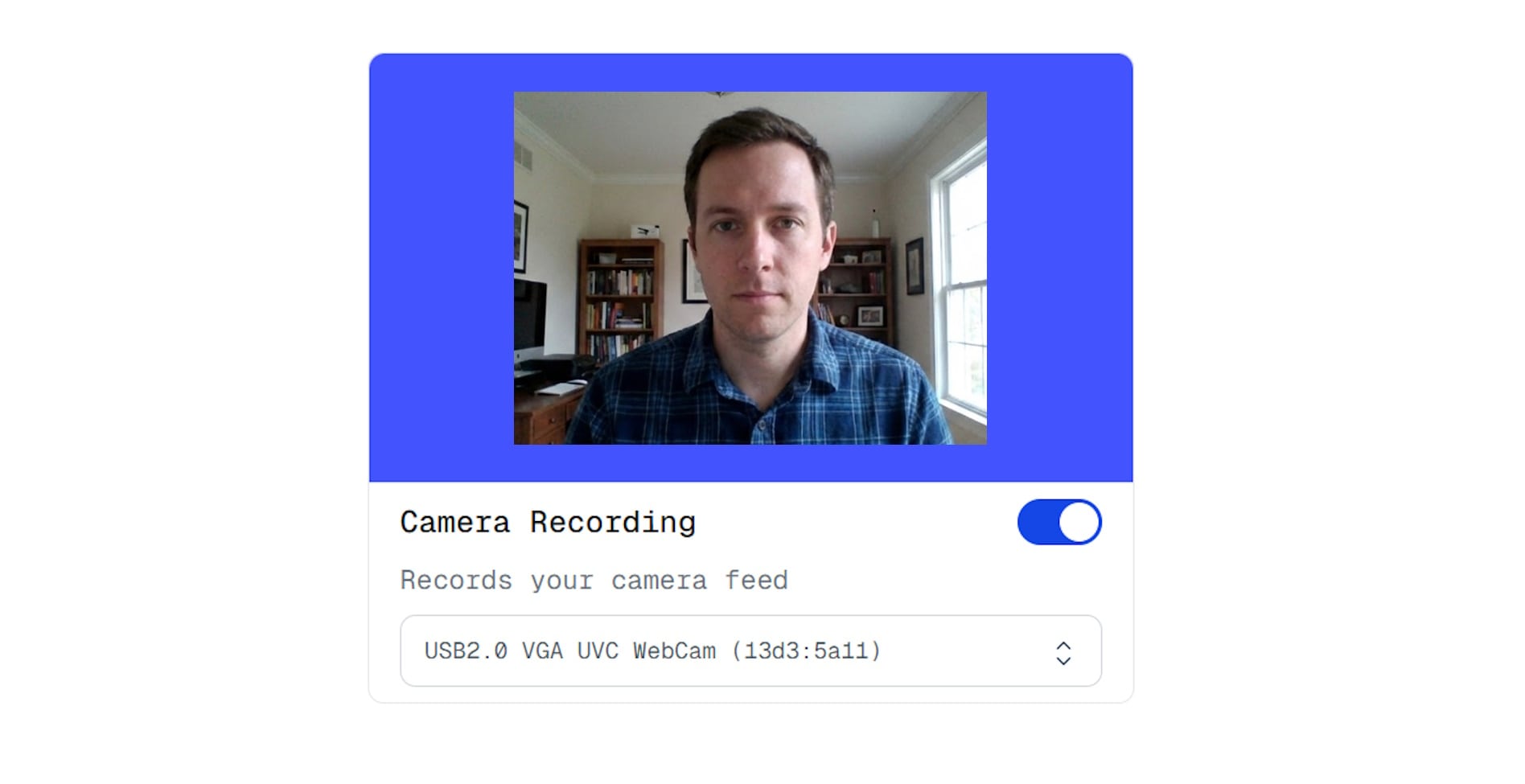
A sample image of Webcam Recorder Component
What This Component Does
- Records video from your webcam
- Displays a live preview before recording
- Allows selecting from multiple webcam devices
- Can be combined with screen and microphone recordings
Enabling the Webcam
To enable this component, simply toggle the switch next to Webcam.
If this is your first time using the webcam in Screen Script, your browser will ask for permission.

A sample image of how Screen Script ask for camera permission.
You will see two permission options:
-
Allow while visiting the site
- Grants permanent access (though you can disable it whenever you want from site settings.)
- You won’t be asked for permission again unless you revoke it in browser settings
-
Allow this time
- Grants temporary access
- You will need to allow the permission again the next time
-
Never allow
- Block access forever
- You need to manually allow permission in site settings to access the camera next time.
Once enabled successfully, a live preview of your webcam feed will appear.
Choosing a Camera Device

A sample image of how to change the camera device in Screen Script.
At the bottom of the preview, you will find a device selection dropdown.
Use this to:
- Switch between built-in cameras
- Switch to external USB webcams
- Use virtual cameras (if available)
Enabling a Permanently Disabled Permission
Sometimes you may accidentally click “Block” when the browser asks for webcam permission.
If this happens, Screen Script will not be able to access your camera until you manually enable it again.

A sample image of how Screen Script responds when trying to enable the camera if camera permission is denied.
Follow the steps below to re-enable the permission:

How to enable a permanently denied permission for screen scripts.
Chrome (Windows/macOS/Linux)
- Click the lock icon next to the website address in the browser bar.
- Find Camera in the permissions list.
- Change it from Block → Allow.
- Refresh the Screen Script page.
Edge
- Click the lock icon next to the URL.
- Look for Camera.
- Switch the permission from Block → Allow.
- Refresh the page.
Firefox
- Click the camera icon on the left side of the address bar (if visible), or open Site Permissions.
- Set Use the Camera → Allow.
- Refresh the page.
Safari (macOS)
- Go to Safari → Settings → Websites → Camera.
- Find Screen Script in the list.
- Change permission from Deny → Allow.
- Reload the page.
After Re-Enabling the Permission
Once you allow camera access again, toggle the Webcam component in Screen Script.
You should now see the preview successfully.
If the webcam still does not show:
- Restart your browser
- Make sure no other app is using the camera
- Check macOS System Settings → Privacy & Security → Camera
Things to Keep in Mind
-
Webcam component does NOT record audio
A webcam only provides video.
If you want to record sound, enable the Microphone component separately, and select your camera audio there. -
Select the correct camera If your device has multiple cameras (e.g., laptop camera + external webcam), choose the correct one from the dropdown to avoid capturing the wrong device.
-
Permissions must be allowed If you deny access, the webcam component will remain disabled until permission is granted again.
FAQs
1.Why is my webcam not showing any preview?
This usually happens when:
- You denied camera permission earlier
- Another app is already using your webcam
- Your browser blocked access
Go to your browser’s site settings and allow Camera → Screen Script.
2. Why does the webcam ask for permission every time?
You may have selected Allow once.
To avoid this prompt, choose Always allow when enabling the webcam.
3. Why is there no audio from my webcam?
Webcams do not record audio in Screen Script.
Enable the Microphone component if you want audio in your recording. You will find your camera there if it supports audio.
4. How do I switch between multiple cameras?
Use the device selection dropdown below the preview.
You will see all available cameras:
- Built-in laptop cameras
- External USB webcams
- Virtual cameras (OBS, Snap Camera, etc.)
5. Why is the video from my webcam blurry or low quality?
This can happen if:
- Your camera hardware has a low resolution
- Lighting conditions are poor
- Another app is using the camera at a lower quality setting
Try improving your lighting or closing other apps using the webcam.
6. My webcam feed is mirrored. Is this normal?
Yes. Preview is often mirrored to feel natural (like a selfie).
The final recording may or may not be mirrored depending on your webcam configuration.
7. Why does my external webcam not appear in the dropdown?
Possible reasons:
- It is not connected properly
- Your browser does not have permission
- Drivers are missing or blocked
- Another application is locking the camera
Reconnect the device and restart your browser.
8. Can I disable the webcam while recording?
No. Once recording begins, webcam settings are locked for stability.
Stop the recording first to make changes.
9. Why does my webcam look laggy?
Lag can be caused by:
- Low-end hardware
- Running many apps in the background
- High CPU usage
- Using 1080p webcams on older devices
Closing unused applications may help.
10. Can I place the webcam anywhere on the screen?
Yes. After enabling the webcam, Screen Script allows you to reposition and resize the webcam frame before recording.