
Audio Settings
Table of Contents
Overview
The Audio Properties panel, identified by the speaker icon in the Properties Panel icon strip, lets you control the volume levels of the two audio sources recorded in your video.
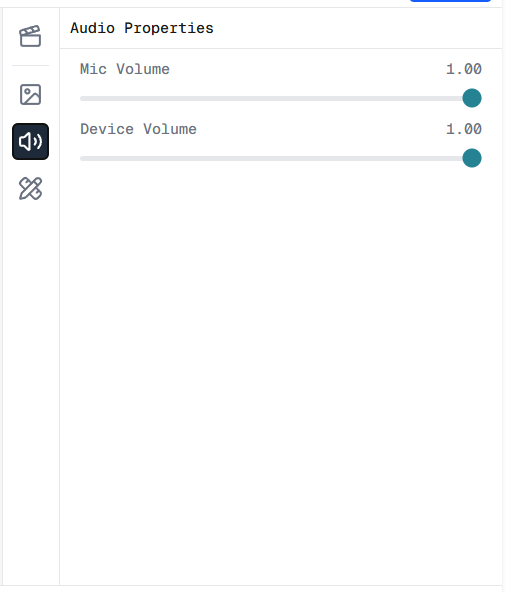
Audio Properties panel in the Screen Script Editor
Mic Volume
The Mic Volume slider controls the volume of the microphone audio in the final video. Drag it left to reduce the mic level or right to increase it. The current value is shown on the right side of the slider — the default is 1.00.
Device Volume
The Device Volume slider controls the volume of the system audio captured during recording. Screen Script records device audio when the Share system audio option is enabled at the start of a screen recording session.
If no system audio was captured during recording, this slider has no effect. See the Screen Recorder guide for how to enable system audio capture.