
Media Timeline
Table of Contents
Overview
The Media tab in the timeline shows your entire recorded footage as a single unified track called All Media. This includes all elements of your recording — screen footage, camera feed, and microphone audio — treated as one video.

Media Timeline in the Screen Script Editor
The All Media Track
All your recorded elements — screen recording, webcam footage, and audio — are combined into a single All Media track. This means any edit you make on this track affects the entire video simultaneously. There is no per-layer editing in the Media timeline; a split or delete applies to all elements at that point in time.
Toolbar Controls
The Media timeline toolbar sits above the track area and contains four tools. Trim Start and Trim End operate at the project level and are always available. Split and Delete are clip-level operations that require a clip to be selected first.
| Control | Requires Selection | Description |
|---|---|---|
| Trim Start | No | Sets the project's start point to the current playhead position |
| Trim End | No | Sets the project's end point to the current playhead position |
| Split | Yes | Splits the selected clip into two at the current playhead position |
| Delete | Yes | Removes the selected clip from the timeline |
Trim Start and Trim End
Trim Start and Trim End control where the whole project begins and ends rendering. They are independent of any individual clip — you do not need to select anything first.
- Move the playhead to the point where you want the project to start or end.
- Click Trim Start to set that as the new project start — the video will begin rendering from this point.
- Click Trim End to set that as the new project end — the video will stop rendering at this point.
This is a quick way to cut off unwanted footage at the beginning or end of your recording without touching individual clips.
Split
The Split tool divides a selected clip into two independent clips at the current playhead position.
Note: You must select a clip before Split becomes available. Click on a clip in the track to select it first.
- Click on a clip in the track to select it.
- Move the playhead to the point where you want to cut.
- Click Split.
The clip becomes two separate segments. You can then trim or delete each one independently. A common use case is removing a section from the middle of your recording — split at the start of the unwanted section, split again at the end, then delete the clip in between.
Because all media is on a single unified track, splitting affects all elements (screen, camera, and audio) at that point in time.
Delete
The Delete tool removes a selected clip from the timeline entirely.
Note: You must select a clip before Delete becomes available. Click on a clip in the track to select it first.
- Click on a clip to select it.
- Click Delete.
Use this together with Split to cut out a section of your video — split at both ends of the section you want to remove, then delete the middle clip.
Clip Properties
When you click on a clip in the Media track, the Clip Properties panel appears in the sidebar. It shows the precise timecodes for the selected clip.
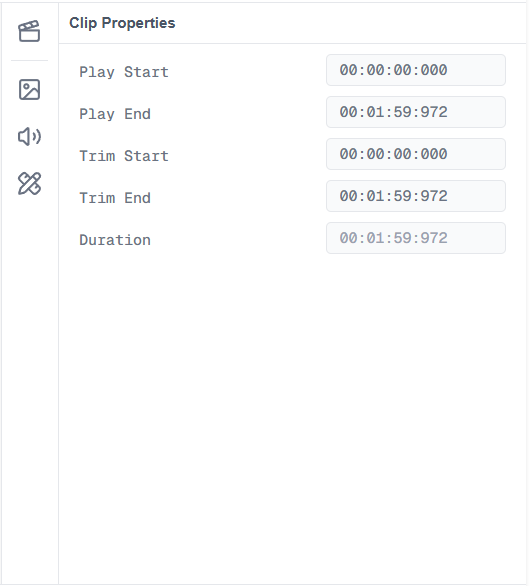
Clip Properties panel in the Screen Script Editor
| Property | Editable | Description |
|---|---|---|
| Play Start | Yes | The timecode where this clip begins playing in the final video |
| Play End | Yes | The timecode where this clip stops playing in the final video |
| Trim Start | Yes | The point within the original recording where playback starts for this clip |
| Trim End | Yes | The point within the original recording where playback ends for this clip |
| Duration | Read-only | The total length of the clip after trimming — calculated automatically |
To adjust a clip's trim points, you have two options:
- Drag the clip edges in the timeline — grab the left or right edge of a clip and drag to shorten or extend it, just like in a standard video editor.
- Type directly in the properties panel — click any editable field and enter a timecode value manually.
Duration is always calculated from your other values and cannot be edited directly.