
Layout Timeline
Table of Contents
- Overview
- The Layout Track
- Adding a Transition
- Layout Properties
- Transition Properties
- Aspect Ratio and Layout Library
Overview
The Layouts tab in the timeline controls how your screen recording and camera feed are positioned, sized, and arranged throughout the video. You can use a built-in layout from a predefined library, or define a fully custom layout with precise values for position, size, corner radius, and sorting order.

Layout Timeline in the Screen Script Editor
The Layout Track
Unlike the Media track, the Layout track is a single continuous band that spans the full length of your video — it cannot be trimmed or shortened. The only toolbar control available here is Delete, which removes a selected transition.
Instead of splitting the band, you add transitions to divide the layout track into segments. Each segment can have its own layout settings. This is how you change the layout at different points in your video.
Adding a Transition
A transition marks the point where the video switches from one layout to another. Adding a transition splits the layout band into two independent segments, with an animated changeover between them.
- Move the playhead to the point in the timeline where you want the layout to change.
- Click Add Transition (or double-click on the layout band at that point).
- A transition marker appears at the playhead position, dividing the band into two layout segments.
- Drag the transition marker left or right to reposition where the layout change occurs.
You can only drag the transition itself — the layout band always fills the full video length and cannot be moved or resized.
To remove a transition, click on the transition marker to select it and click Delete in the toolbar.
Layout Properties
Clicking on a layout segment in the track opens the Layout Properties panel in the sidebar. At the top is a Mode dropdown where you choose between Built-in Layout and Custom Layout.
Built-in Layout
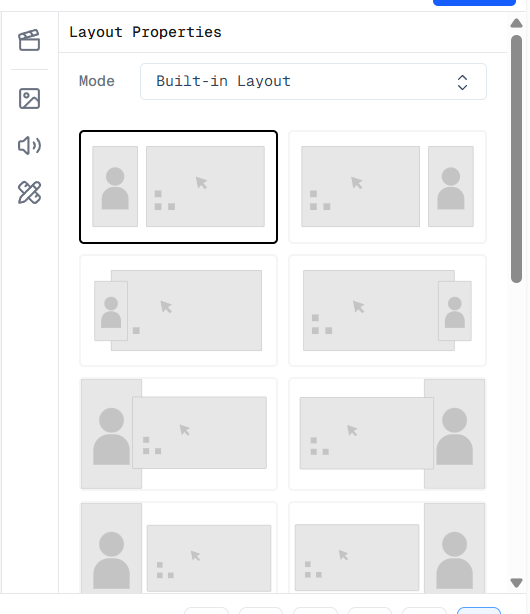
Built-in Layout selection panel in the Screen Script Editor
When Built-in Layout is selected, the panel shows a grid of predefined layout thumbnails. Each thumbnail previews the arrangement of screen and camera video for that layout. Click any thumbnail to apply it to the selected segment.
The available layouts are determined by the aspect ratio set in Project Settings — see Aspect Ratio and Layout Library below.
Custom Layout
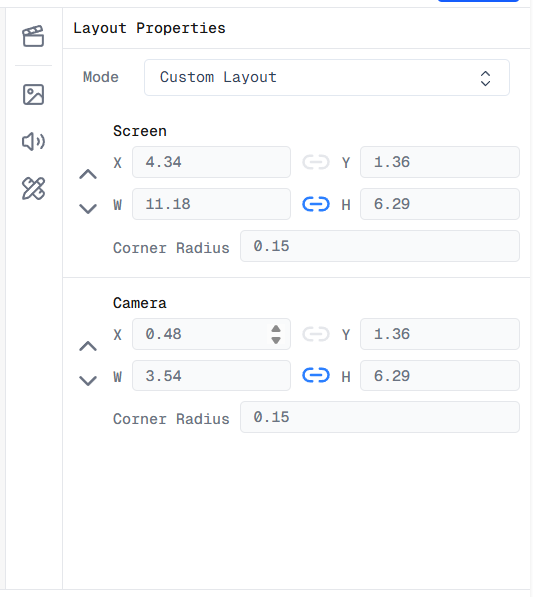
Custom Layout properties panel in the Screen Script Editor
When Custom Layout is selected, the panel exposes individual controls for both the Screen and Camera elements. You can set the following for each:
| Property | Description |
|---|---|
| X | Horizontal position of the element on the canvas |
| Y | Vertical position of the element on the canvas |
| W (Width) | Width of the element |
| H (Height) | Height of the element |
| Corner Radius | Rounds the corners of the element |
| Sorting Order | Controls which element appears on top when they overlap |
The link icon between W and H locks the aspect ratio so width and height scale together when either value is changed.
Transition Properties
Clicking on a transition marker opens the Transition Properties panel in the sidebar.
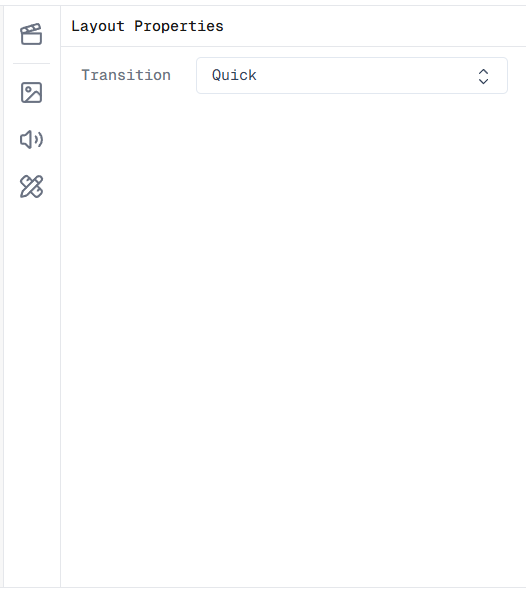
Transition Properties panel in the Screen Script Editor
There is a single property:
| Property | Description |
|---|---|
| Transition | Controls the speed of the animated changeover between the two layouts |
The Transition dropdown has three options:
| Value | Description |
|---|---|
| Ease | The slowest transition — a gradual, smooth animation between layouts |
| Quick | A moderate speed — a balanced, natural-feeling transition |
| Cut | Instant — the layout changes with no animation |
Aspect Ratio and Layout Library
The built-in layout library is tied to the aspect ratio configured in your Project Settings. Each aspect ratio has its own set of predefined layouts optimised for that format.
Important: If you change the aspect ratio in Project Settings, any layouts you have set on the timeline will be reset to the default layout for the new aspect ratio. Custom layout values will also be lost. Set your aspect ratio before configuring layouts to avoid having to redo this work.