
Wallpaper
Table of Contents
Overview
The Wallpaper panel, identified by the image icon in the Properties Panel icon strip, lets you set the background behind your screen and camera layers. You switch between the three wallpaper types using the Mode dropdown at the top of the panel.
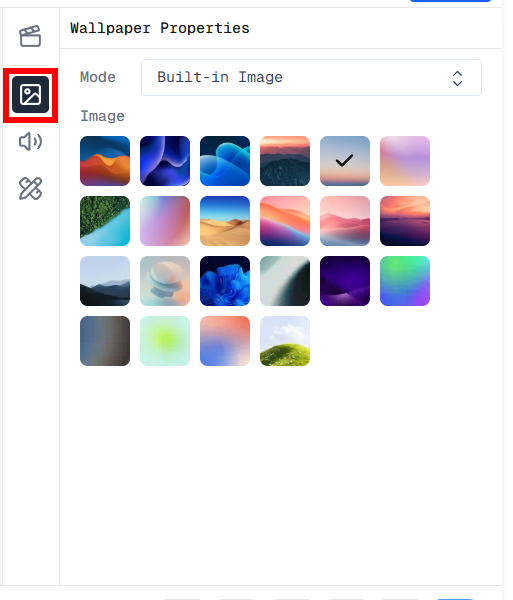
Wallpaper Properties panel in the Screen Script Editor
Built-in Images
Select Built-in Image from the Mode dropdown to choose a background that ships with Screen Script. A grid of images is displayed — click any one to apply it instantly. A checkmark appears on the currently selected image.
Solid Color
Select Solid Color from the Mode dropdown to use a plain color as your background. You can either:
- Pick from the predefined color swatches shown in the panel.
- Click the color picker icon to open a full color picker and choose any custom color.
Custom Image
Select Custom Image from the Mode dropdown to use an image from your device. Clicking this option opens your system's file picker, where you can select any image file to use as the background.