
Microphone Recording Component
Table of Contents
- Introduction
- What This Component Does
- Enabling the Microphone
- Choosing an Input Device
- Things to Keep in Mind
- Enabling a Permanently Disabled Permission
- FAQs
Introduction
The Microphone Recording component allows you to capture audio from your device’s microphone. This audio will be included in your final recording and is essential for narrations, tutorials, explanations, or walkthroughs.
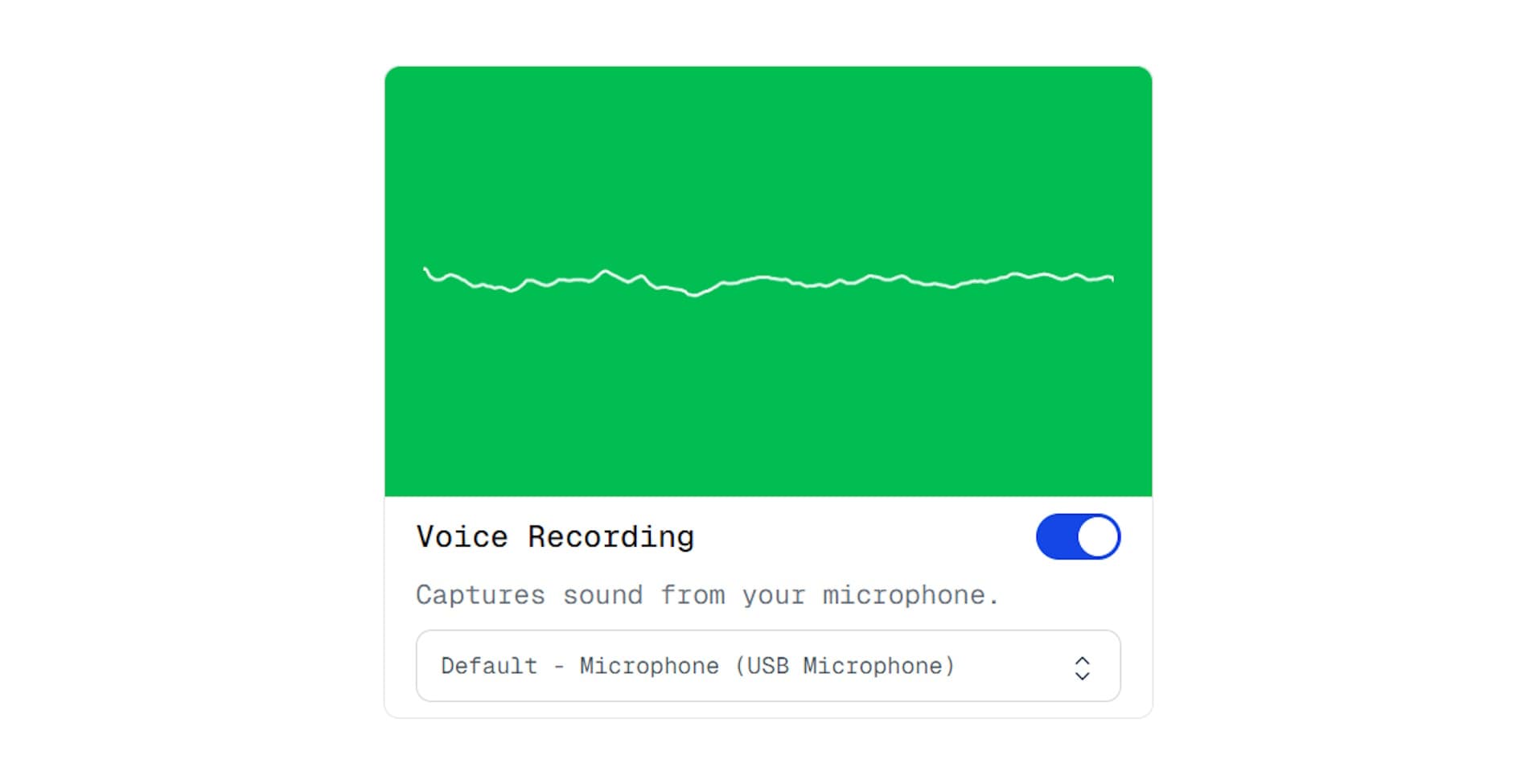
A sample image of Microphone Recorder Component
What This Component Does
- Captures audio from your microphone
- Allows selecting from multiple input devices
- Provides a live volume level indicator
- Works alongside screen and webcam recordings
Enabling the Microphone
To enable microphone recording, toggle the Microphone switch.
If this is your first time using the microphone in Screen Script, your browser will ask you to grant permission.

A sample image of Screen Script asking for permission
You will see two options:
-
Allow while visiting the site
- Browser grants temporary access
- You must allow permission again next time
-
Allow this time
- Browser permanently trusts Screen Script
- No more permission pop-ups (unless revoked manually)
-
Never allow
- Block access forever
- You need to manually allow permission in site settings to access the camera next time. Once enabled, you will see your audio input levels move to confirm that your mic is working.
Choosing an Input Device

A sample image of how to change the microphone device in Screen Script.
If you have multiple microphones, you can choose the one you want to use from the device selection dropdown.
Examples of input devices:
- Built-in laptop microphone
- USB microphones
- Headset microphones
- Virtual audio devices (if supported by the browser)
Things to Keep in Mind
-
Microphone is the only audio source Screen Script uses this component exclusively for voice narration.
-
Select the correct microphone If you have multiple devices, ensure you are using the correct one. Otherwise, your audio may sound distant or unclear.
-
Background noise Your microphone may capture:
- Keyboard sounds
- Fan noise
- People talking nearby
Use a noise-cancelling mic for best results.
- Browser limitations
Some browsers may restrict the ability to change microphone devices after permissions are granted.
Refreshing the page solves this.
Enabling a Permanently Disabled Permission
If you accidentally clicked “Block” when the browser asked for microphone permission, Screen Script will not be able to record audio until you re-enable it manually.

A sample image of how Screen Script responds when trying to enable the mic if microphone permission is denied.
Follow the steps for your browser:

How to enable a permanently denied permission for screen scripts.
Chrome (Windows/macOS/Linux)
- Click the lock icon next to the website address.
- Find Microphone in the list.
- Change Block → Allow.
- Refresh the page.
Edge
- Click the lock icon.
- Look for Microphone.
- Change Block → Allow.
- Refresh Screen Script.
Firefox
- Click the microphone icon in the address bar (if visible).
- Or open Firefox Site Permissions.
- Change Use the Microphone → Allow.
- Reload the page.
Safari (macOS)
- Open Safari → Settings → Websites → Microphone.
- Find Screen Script in the list.
- Change Deny → Allow.
- Refresh the tab.
After Re-Enabling the Permission
Toggle the Microphone component again.
If audio levels do not move:
- Restart your browser
- Ensure no other app is locking the microphone
- On macOS, check System Settings → Privacy & Security → Microphone
FAQs
1. Why is my microphone not picking up any sound?
Possible causes:
- Permission denied
- Wrong device selected
- Microphone muted at the OS level
- Another application is using the mic
Check your device selection and browser permissions.
2. Why does my microphone ask for permission every time?
You may have selected Allow once.
Choose Always allow to avoid repeated prompts.
3. Why is my audio noisy or low quality?
Common reasons:
- Low-quality built-in microphone
- Poor room acoustics
- Background noise
- Mic too far away
Use a headset or USB microphone for clearer audio.
4. Why does Screen Script not detect my USB microphone?
Try:
- Reconnecting the device
- Restarting your browser
- Allowing browser permission
- Checking OS audio settings
Some devices may appear only after a page refresh.
5. Can I change the microphone while recording?
No. To keep the audio stable, microphone changes are only allowed before recording begins.
6. Does Screen Script record system audio from the microphone component?
No.
This component only records voice input.
System audio is handled separately when choosing screen recording sources.