
Screen Recorder Component
Table of Contents
Introduction
The Screen Recording component allows you to capture your device’s screen. You can choose to record your entire screen, a specific window, or only a browser tab. This gives you flexibility depending on what you want to show and the performance of your device.
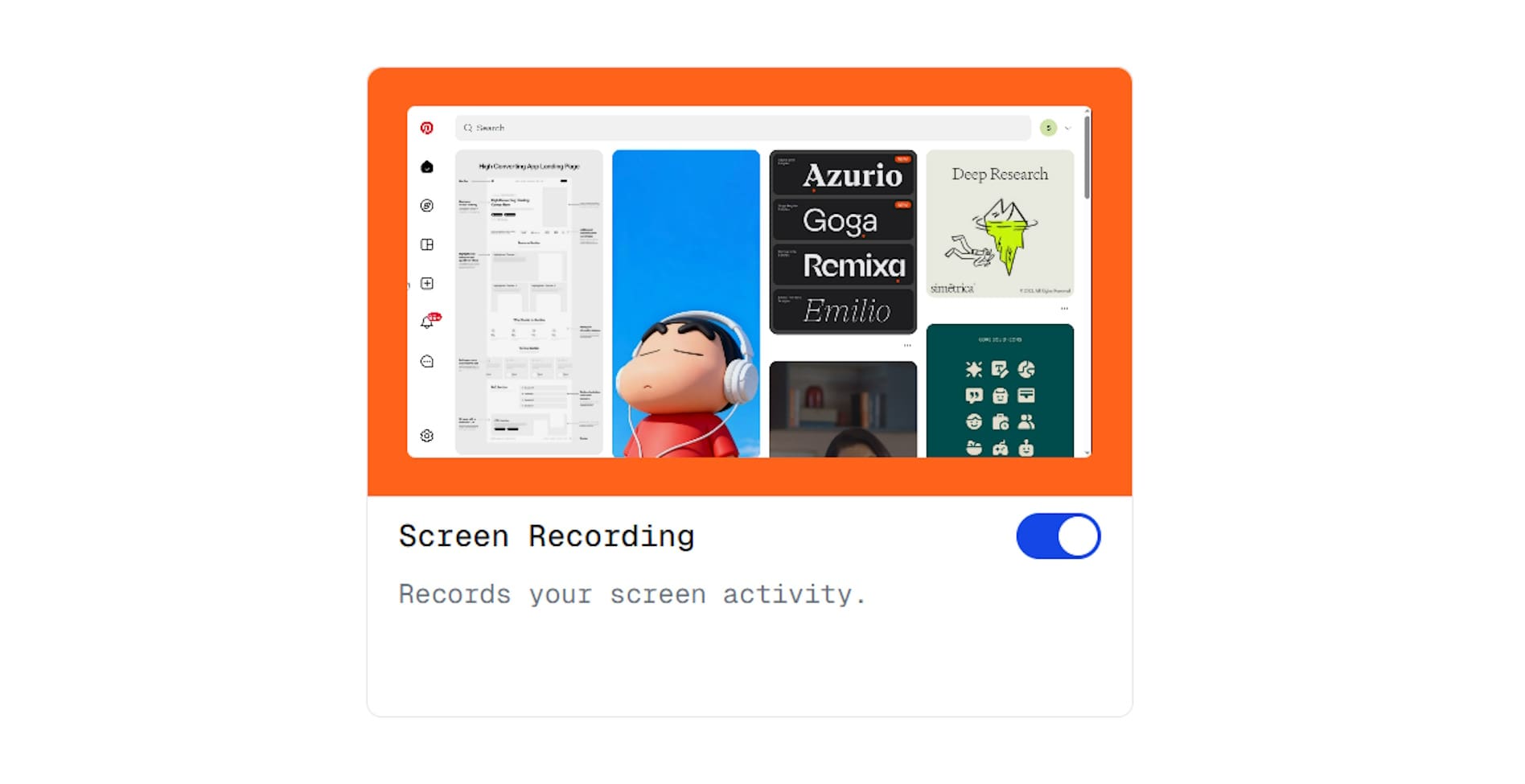
A sample image of Screen Recorder Component
What This Component Does
The Screen Recorder captures what's happening on your display. It supports:
- Capture full screen — records everything on one monitor
- Capture a single application window — records one app only
- Capture a specific browser tab — records one tab only
- Optionally record system audio (if supported by your browser and device)
Chrome and Edge provide the best screen recording experience, including system audio capture and better performance. Firefox and Safari work but may have limitations.
Permissions
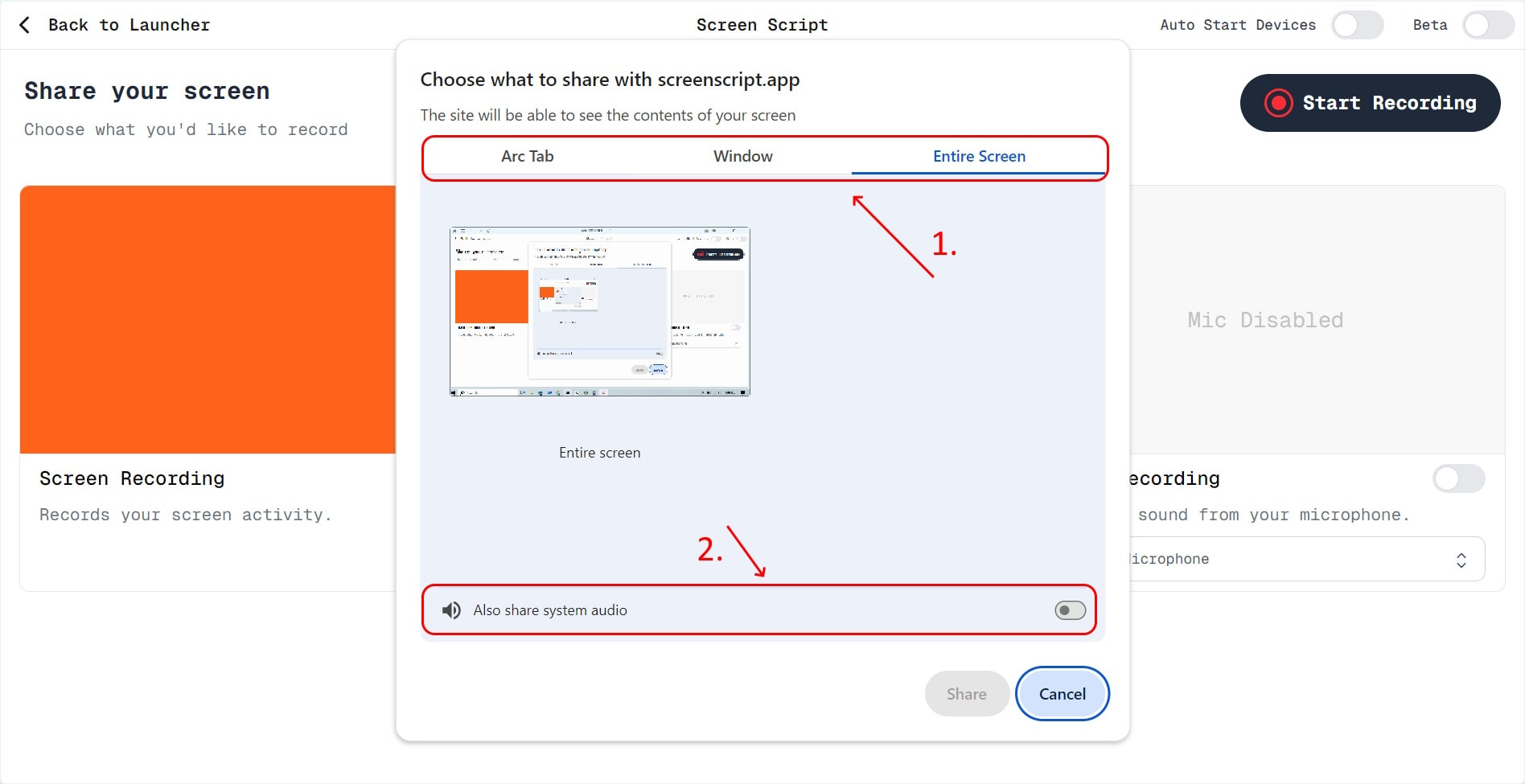
A sample image of Screen Recorder Component
When you enable the Screen Recording component:
- Your browser will show a screen selection popup.
- You must choose (1):
- Entire screen
- A specific window
- A browser tab
- In the same popup, you may also see the option “Share system audio” (2)
- Enable this if you want internal audio included in the recording.
If you do not see system audio:
- Your browser may not support it on your device.
- You may need to choose Entire Screen, as some browsers only allow audio with full screen capture.
Things to Take Care Of
Apple Device Permissions
On macOS, you may be prompted to allow Screen Recording permission in System Settings → Privacy & Security. This is required before your browser can capture the screen. After enabling the permission, restart your browser.
Performance Tips
If you're on a low-end device:
- Recording the entire screen can improve performance compared to recording a single tab or window — browsers optimize full-screen capture more efficiently.
- Close unnecessary tabs and applications to reduce CPU load.
Don't Resize During Recording
If you choose to record a window or browser tab, do not resize the window while recording. Changing the size may cause:
- Video corruption
- Black frames
- Unexpected scaling issues
Keep the window size unchanged for the entire recording.
FAQs
1. Why do I have to choose my screen every time?
Browsers do not allow permanent permission for screen capture. You must select your screen, window, or tab each time you start recording.
2. Why is system audio not recording?
System audio support depends on your browser and device.
- Some browsers only allow audio when capturing the entire screen.
- macOS and certain Linux builds may block or limit system audio capture.
Try choosing Entire Screen and make sure you check the "Share system audio" option. System audio works most reliably on Chrome and Edge.
3. The system audio option is missing. What should I do?
Try these steps:
- Choose Entire Screen instead of a window or tab.
- Update your browser to the latest version.
- Check if your device or OS supports internal audio capture.
4. Why is the preview blank after I enable screen recording?
Screen preview may be hidden automatically to improve performance. Recording will still work.
5. My recorded video is corrupted or stretched. What caused this?
If you recorded a window or tab, resizing it during recording can corrupt the video. See Don't Resize During Recording above. Keep the window size unchanged until the recording ends.
6. I am on macOS and get a “Permission required” message.
macOS requires an extra step:
- Go to System Settings → Privacy & Security → Screen Recording
- Allow permission for your browser
- Restart the browser
7. Can I record multiple monitors?
You can choose any monitor, but only one screen can be recorded at a time per recording.
8. Why does recording lag on my device?
Possible reasons:
- Low-end hardware
- Recording a heavy web app or multiple windows
- Recording a window or tab instead of the full screen
Try switching to Entire Screen for better performance.
9. Why did the recording end automatically?
This can happen if:
- The browser tab crashed or refreshed
- The window you selected was closed
- You switched desktops or virtual workspaces on some operating systems
10. Can I record DRM-protected content?
No. Browsers block screen capture for DRM-protected videos (e.g., Netflix, Amazon Prime, Hotstar). The screen will appear black.
For a step-by-step walkthrough, see the How to Record Your Screen guide.